

MongoDB Node
The MongoDB Node allows you to interact with MongoDB collections directly inside a DotPortion workflow. You can perform database operations such as inserting, querying, updating, and deleting documents without writing backend code.Before You Start (Important)
Before using the MongoDB Node, you must configure your MongoDB connection.Step 1: Add MongoDB Connection URL
- Go to Secrets in the DotPortion dashboard
- Add your MongoDB connection URL
- Save the secret
Step 2: Allow Network Access
In your MongoDB provider (e.g. MongoDB Atlas):- Enable Network Access
- Allow connections from all IP addresses (
0.0.0.0/0)
⚠️ This is required so DotPortion servers can access your database.
What the MongoDB Node Does
The MongoDB Node is responsible for:- Connecting to a configured MongoDB database
- Performing CRUD operations on collections
- Mapping workflow data to database fields
- Returning database results to the workflow
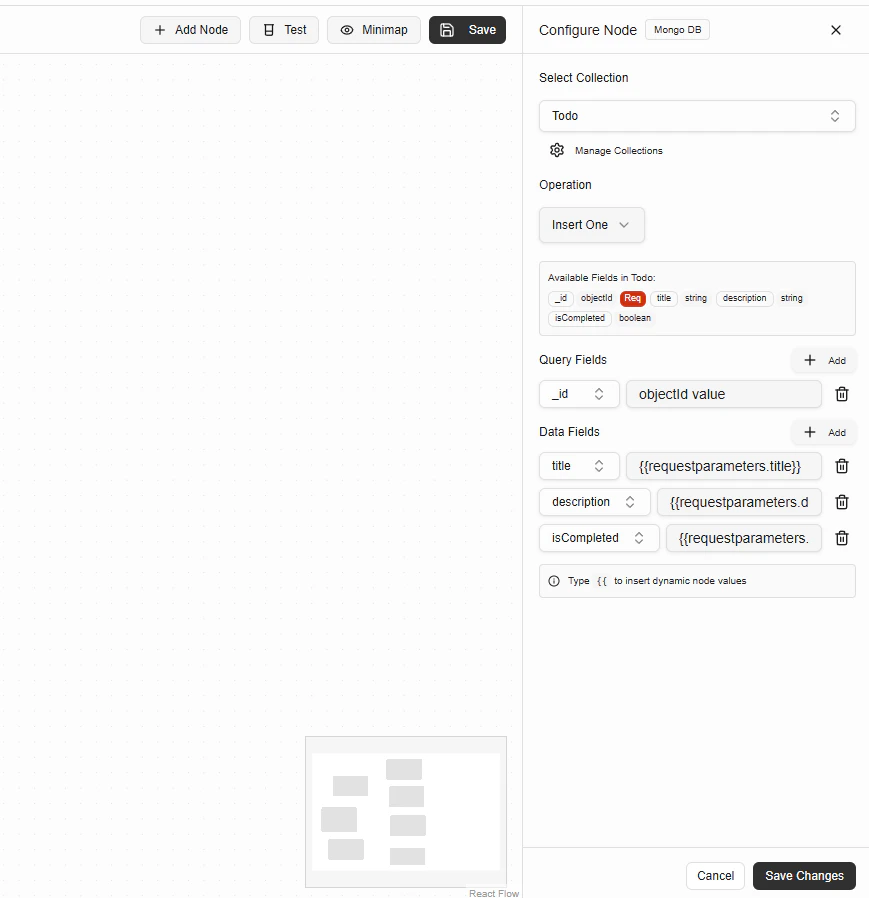
Configuration Fields
Select Collection
Choose the MongoDB collection you want to operate on. You can manage collections using Manage Collections.Operation
Select the database operation to perform. Supported operations include:- Insert One
- Find One
- Find Many
- Update One
- Delete One
Available Fields
This section shows the schema fields available in the selected collection, including:- Field name
- Data type
- Required fields
Query Fields
Query Fields define how documents are matched. Used for:- Finding documents
- Updating specific records
- Deleting records
Data Fields
Data Fields define what data is written or updated in the document. You can insert dynamic values using{{ }}.
Example:
Example: Insert a Todo
Configuration
Collection:TodoOperation:
Insert One
Data Fields
title→{{requestparameters.title}}description→{{requestparameters.description}}isCompleted→{{requestparameters.isCompleted}}
Output
The MongoDB Node outputs the result of the operation. Example output:Execution Rules
- MongoDB connection must be configured in Secrets
- Required fields must be provided
- Query fields must match document schema
- Errors stop workflow execution